Global iPhone guidance / Decision guide
Google Photos Free up space on iPhone when iCloud Photos is on
If you want to keep your pictures in both Google Photos and iCloud Photos, do not use Google Photos’ Free up space as your iPhone cleanup method. Use Apple’s Optimize Storage setting instead.
Google’s feature deletes backed-up items from the device’s photo library. Apple says deletions from an iCloud Photos library sync across devices. Read together, those documented behaviours mean that removing an item this way can also remove its iCloud copy. The surviving Google backup does not preserve the Apple library. This is a conclusion from the two companies’ instructions, not a firsthand test. Google’s iPhone cleanup instructions; Apple’s deletion rules.
This guide covers an iPhone using Google Photos backup and iCloud Photos together. It is not a migration guide for shared libraries or a way to empty either cloud account.
Decide which space you need
An iPhone storage warning and a cloud-storage warning need different fixes. Apple distinguishes the phone’s physical capacity from its iCloud allowance. Check Settings → General → iPhone Storage for the former, and Settings → your name → iCloud for the latter. Apple’s storage explanation.
- Phone full, keeping both photo libraries: choose Optimize Storage below.
- Google account full: Free up space on this device is the wrong control because its purpose is to retain Google backups. Do not substitute Google’s ordinary Delete button without reviewing its separate consequences.
- iCloud full, keeping iCloud photos: device optimization does not shrink that cloud library. Treat reducing the library or changing storage capacity as a separate decision.
- Moving away from Apple Photos: stop here until you have checked what you will retain, including backup quality and any important files outside the backup’s coverage.
Scroll the diagram sideways to read all labels.
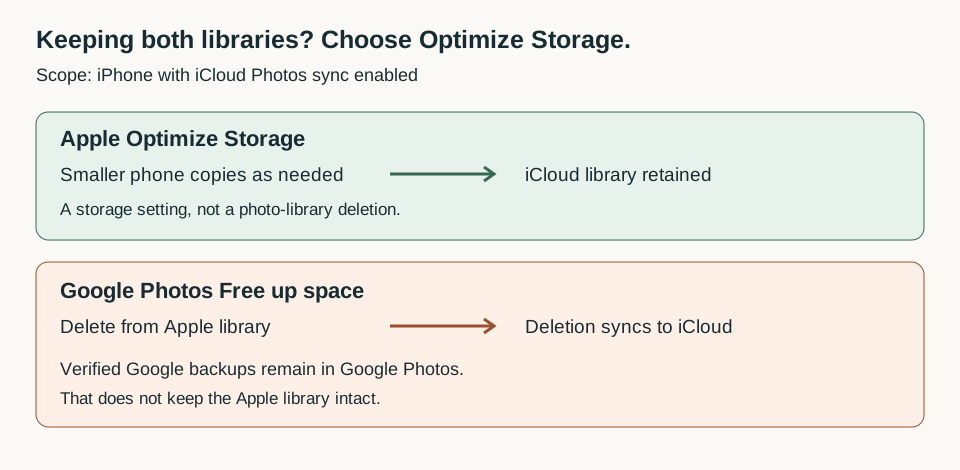
Keep both libraries and reduce phone storage
Apple’s Optimize Storage keeps full-resolution originals in iCloud while allowing smaller versions on the phone. It manages storage as needed rather than promising an immediate, fixed number of gigabytes. Apple’s Optimize Storage guide.
Open Settings → your name → iCloud → Photos. Confirm that photo syncing is enabled, then choose Optimize Storage. Apple’s current instructions put this inside iPhone Storage on newer versions; on iOS 26 or earlier, select Optimize Storage directly. Follow the labels on your device and the linked guide if they differ.
Do not delete photos to force optimization. You are choosing how the phone stores the library, not removing entries from it. Keep internet access available when you need originals that are not stored locally.
Before relying on Google as your remaining copy
A picture appearing in the Google Photos app is not sufficient evidence that it has been uploaded. Check the signed-in account, then tap your profile picture to inspect backup progress. Google documents a “Backup complete” status and an item-level check: open a photo or video, choose More → About, and examine Details for its backup status and size. Resolve pending uploads or storage errors before cleanup. Google’s iPhone backup checks.
Also inspect the quality of existing backups, not just today’s upload preference. Google distinguishes Original quality from Storage saver, which can compress or resize files. Its quality guide explains how to inspect an item’s backup details. If you need original-quality files, stop until you have verified a retained original; a small preview cannot establish that. Google’s backup-quality guide.
For irreplaceable pictures, keep a separate copy outside the library you are about to change. Apple explicitly notes that iCloud Photos items are not duplicated in the device’s iCloud backup. Apple’s backup-copy guidance.
Only if you deliberately accept removing those pictures from Apple Photos and iCloud should you proceed to Google’s Free up space workflow. It starts under the Google Photos profile menu and includes deleting the same items from Apple’s Recently Deleted album. That final step removes a recovery route. It is not a routine instruction for someone keeping both libraries.
Already tapped Free up space
Do not empty Recently Deleted. In Apple Photos, open Collections → Utilities → Recently Deleted, unlock it if prompted, select the affected items and choose Recover. Apple ordinarily retains deleted items for 30 days; permanent deletion from that album cannot be undone there. Apple’s recovery instructions. For Shared Library items, only the person who added the photo or video can recover it. Apple’s Shared Library recovery rule.
If the items are no longer recoverable there, check the correct Google account and any independent backups before changing anything else. An available Google copy may help you retrieve a picture, but do not assume that importing it recreates the original Apple library organisation.
The safe stopping point is simple: if you cannot say which copy will remain, do not confirm deletion.