US and UK households / Decision guide
Skylight and iCloud two-way sync: check duplicates and older events
Skylight documents two-way iCloud calendar-event sync. Before switching, check for an existing one-way connection; new Skylight events need a synced-calendar assignment, and events created on the device before setup are not backfilled.
For Apple-calendar households choosing an editable family display. This is a documentation check, not a test of a connected calendar.
Which Skylight instructions should you follow?
The dedicated iCloud guide, updated 16 June 2026, describes two-way support. The general setup guide, updated 10 March 2026, still says only Google supports two-way sync. For this iCloud task, use the newer, specific instructions. These dates do not establish when the feature launched.
Choose display-only or editable events
A school or sports subscription may only need to appear on the household display. A family calendar may also need events entered on the display to reach iCloud. Decide which job you need before changing a connection. The dedicated guide distinguishes subscribed one-way calendars from two-way access.
Scroll the diagram sideways to read all labels.
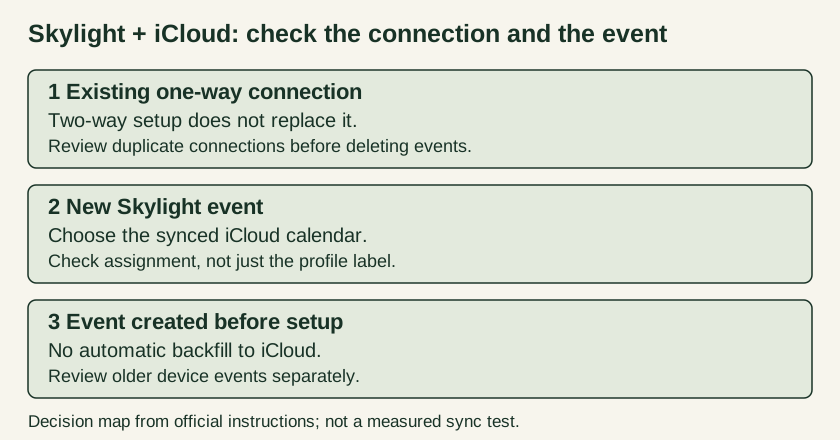
Check these three things during the switch
- Duplicate entries: adding two-way sync does not replace an old one-way connection to the same calendar. Review that connection first; do not start deleting the underlying events to fix a connection problem.
- New device entries: assign each new event to the two-way iCloud calendar under Pick a Synced Calendar. A profile label alone is not the check to rely on.
- Older device entries: do not expect events created before setup to appear retroactively in iCloud. Review what needs attention before relying on the new arrangement.
Skylight allows up to 15 minutes for an iCloud event update to reach Skylight. That is the manufacturer’s allowance, not our observed speed or a promise of instant delivery.
Keep setup and feature questions separate
Use the official connection instructions for authentication and calendar selection. We do not collect credentials or connect your account.
This answer covers calendar events. It does not establish Apple Reminders integration, synchronization of Skylight chores, or which subscription extras your household needs. List those as separate requirements when asking Skylight support; event sync alone does not answer them.