Global travel eSIM guidance / Decision guide
Can you move an Airalo or Saily eSIM to a new phone mid-trip
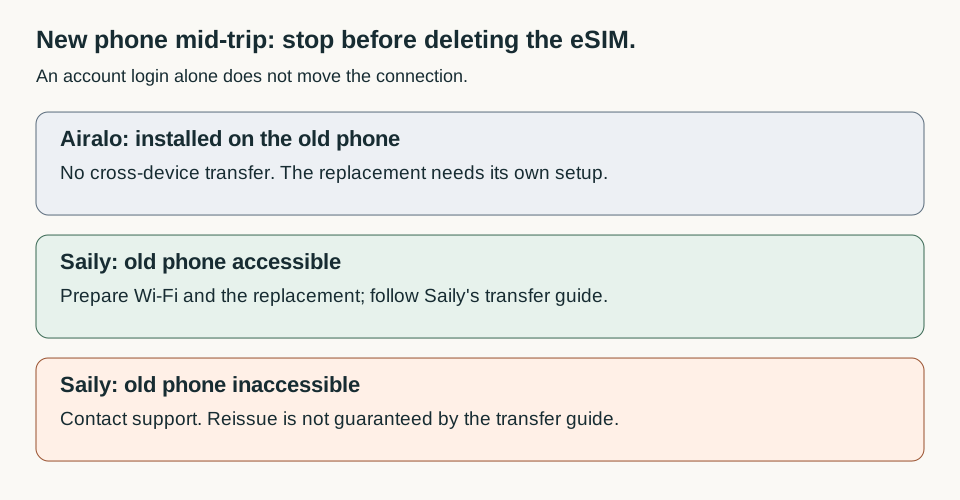
Do not delete the travel eSIM from your old phone until you have checked the provider’s rule. Airalo says an installed eSIM cannot move to another device. Saily publishes a transfer process, but it starts with access to the old phone and removal of the correct Saily profile. The two instructions are not interchangeable. Airalo’s transfer policy; Saily’s iOS transfer guide.
This guide is for an already-installed travel eSIM when you replace a phone. It does not cover moving your home mobile number, an unused purchase, or a refund entitlement. The steps below follow current provider documentation, not hands-on testing.
First separate the account from the phone
There are three things to identify: your provider account, the eSIM profile installed in the phone’s cellular settings, and the paid package supplying data. Seeing a package after signing into the app is not proof that the new phone can use it. Treat phone-setup or eSIM quick-transfer prompts as separate from the provider-specific permission to move this particular plan.
Before a trade-in, wipe or transfer attempt:
- Keep the old phone available if it still works.
- Arrange stable Wi-Fi that does not depend on the eSIM you might remove.
- Confirm the replacement is carrier-unlocked, and check its exact model and regional variant against the provider’s compatibility information. A familiar model name alone is insufficient. Saily’s supported-device list; carrier-lock guidance.
- Note the package, remaining validity and any error before changing settings. Make sure you can identify the travel line rather than your home SIM.
These are preparation safeguards, not instructions to begin deletion.
Scroll the diagram sideways to read all labels.
Airalo with My eSIMs
Airalo’s standard policy is that an installed eSIM stays with its first device. If that phone still works, Airalo suggests using its personal hotspot to connect the replacement while using the remaining data. That shares connectivity; it does not transfer the eSIM.
If the old device is unusable, Airalo says the eSIM and remaining data cannot be recovered or transferred through this route. Plan for a separate connection on the replacement rather than repeatedly scanning the old installation code. Airalo’s transfer FAQ.
Airalo with Packages
Airalo also documents a newer experience identified by a Packages tab and a one-time device setup, rather than individual installation instructions under My eSIMs.
Its reinstall feature applies to the same device. It does not move an existing package to a replacement: packages remain assigned to their device. Airalo’s new-phone instructions are to sign into the app, set up the new device separately and obtain a new package for it. New Airalo setup and FAQs.
If the app’s labels or advice conflict with those instructions, stop and ask Airalo to identify which experience and package you have. Do not use “reinstall supported” as permission to erase a working line before changing phones.
Saily when you can use the old phone
Saily documents transfer guides for both old-phone operating systems. Read the matching guide in full before starting, and have the replacement ready.
From an iPhone: the documented sequence removes the Saily eSIM through Settings → Mobile Service or Cellular → the relevant eSIM → Delete eSIM. Then, in Saily, select Install eSIM → Share eSIM to other person and scan the displayed QR code with the replacement. Despite the sharing label, this is the workflow Saily documents for moving to another device. Saily’s iOS instructions.
From Android: Saily routes removal through Settings → Connections or Network & internet → SIM manager → the relevant eSIM → Remove. Its next steps are Install eSIM in the app, Share eSIM to other person, then scanning the QR code on the replacement. Menu names vary by phone. Saily’s Android instructions.
Do not treat an example label such as “eSIM 2” as your line’s identity. If you cannot confidently identify the Saily profile, lack independent internet, or cannot follow the documented app flow, stop before removal and contact support. Saily also warns that altered eSIM defaults may require a PIN or PUK; do not guess repeatedly.
Saily when the old phone is lost or broken
The self-service guides above require an action on the old device. They do not establish a workaround when you cannot access it.
For a lost phone, Saily directs customers to sign in on another device, check the plan’s status and contact support about whether reissue is possible. Treat a broken, inaccessible phone as a support case too, rather than assuming the accessible-phone steps will work. No restoration or refund is promised here. Saily’s lost-phone guidance.
In the app, use Help → Chat with us. If you cannot access the app, the official help centre provides Email us and a request form. Saily’s contact instructions.
Check the connection before putting the old phone away
Follow the provider’s setup instructions for the new line. Confirm it is selected for mobile data and apply roaming settings to that travel line, not indiscriminately to every SIM. Then briefly turn Wi-Fi off and load a fresh webpage. A visible profile alone is not a connectivity test. Airalo’s connection checks; Saily’s connection checks.
If the test fails, return to Wi-Fi and use support with the exact error. Do not start a cycle of deleting profiles or buying more data until you know whether installation, package assignment or connectivity is the problem.